.png?width=180&height=49&name=Wibbi_Primary-FullColour%20(4).png)
Drive engagement and stay better connected with your patients.
Important - Patient Setting Requirement
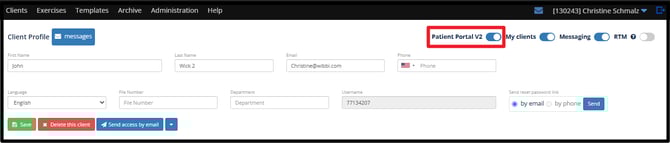
- Patients will need to be using the newest version of the Wibbi patient portal. If you see a patient portal toggle on the client profile screen for older patients, ensure that the toggle is switched to Patient Portal V2 ON before enabling Messaging for them.
Step 1 - Login as Administrator
- Login as an Admin > Go to Administration > Messaging
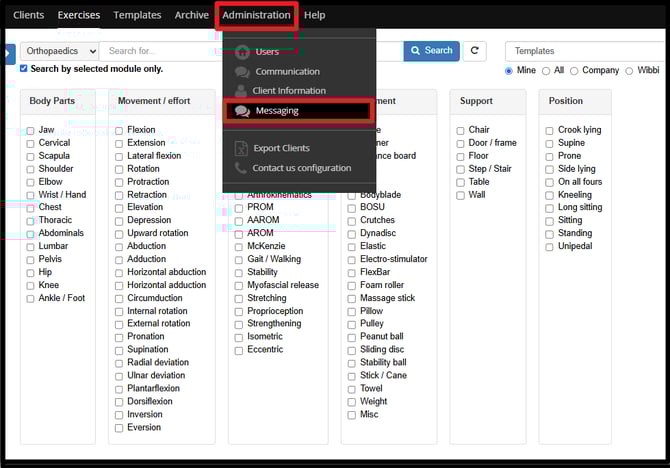
If no one at your clinic has administration access to your account, reach out to support@wibbi.com for assistance in enabling the feature.
Step 2 - Activate Messaging and Choose the Default Setting for all Patients
- Check to Activate Messaging > Save > Activate for All or Disable for All Patients

Once the feature is enabled and saved, select either Activate for all or Disable for all patients. This selection will be the default setting for all new patients on your account. A messaging toggle will appear on the client profile and can be adjusted at anytime.
Step 3 - Chat with a Patient
- Go to the Client Profile > Click the Messages box at the top left
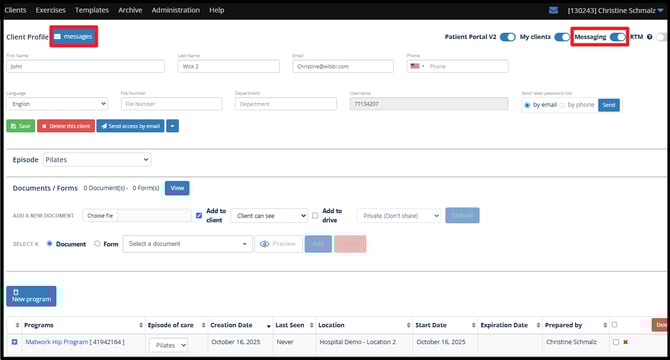
You can access the chat messaging tool from the patient profile. You also have the option to toggle on or off messaging for this patient on the top right hand side.
Chat Messaging for this patient can also be accessed from the program editor screen.
- Click a Program for the List below > Click Messages in the Blue Patient info Bar
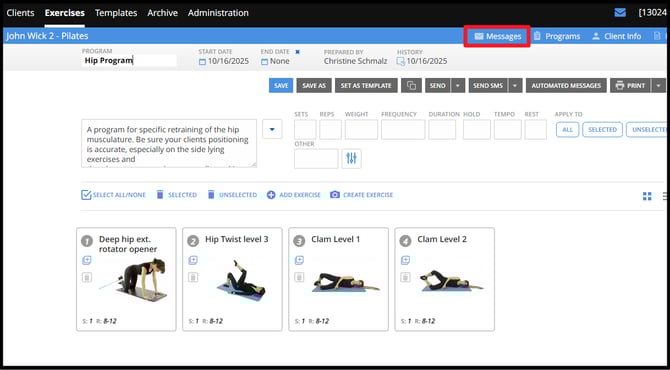
Once you click on the Messages Box for this Patient you will be directed to the selected patient's conversation.
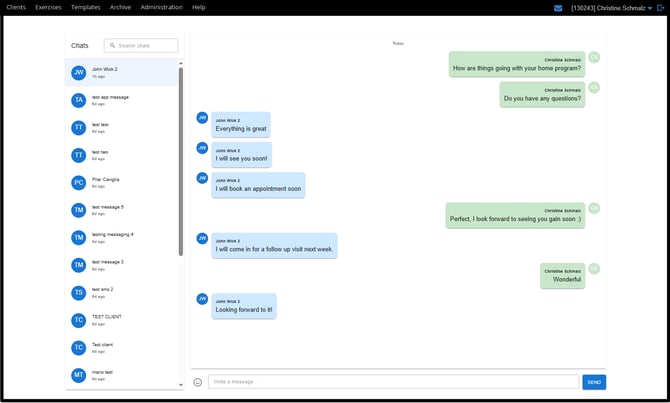
Here is the Professional View of Chat Messaging:
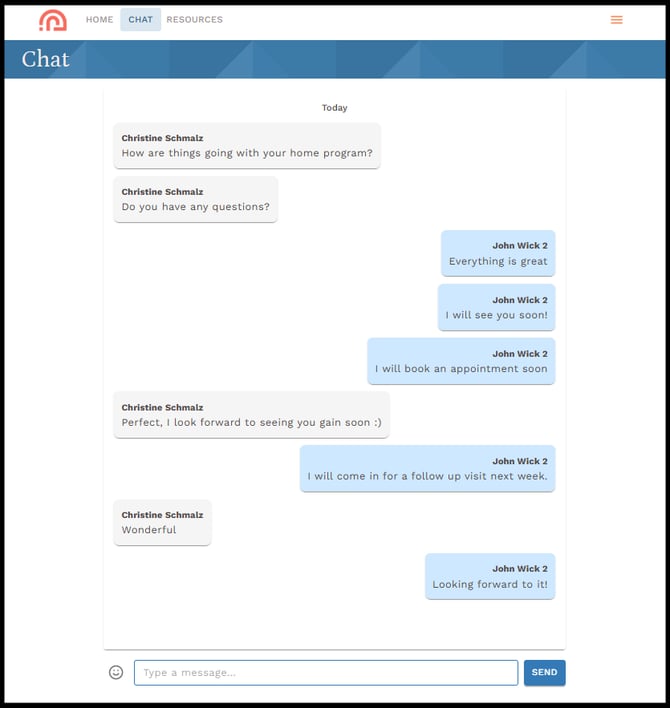
Here is the Patient View of Chat Messaging:
A red dot will appear on the envelop in the main menu bar when a new message is available within the Wibbi platform. Patient's will receive one email notification per day informing them that messages are waiting within their portal.
Thank you for using Wibbi!
Please reach out to support@wibbi.com for further assistance.